ST·03
How to Contact TrafficCreator Support
Quick answer
Open a support ticket from Support Tickets in your dashboard, choose the closest category, set a priority, and include enough detail (project ID, dates, screenshots) for support to act on it without a follow-up round-trip.
Video Walkthrough#
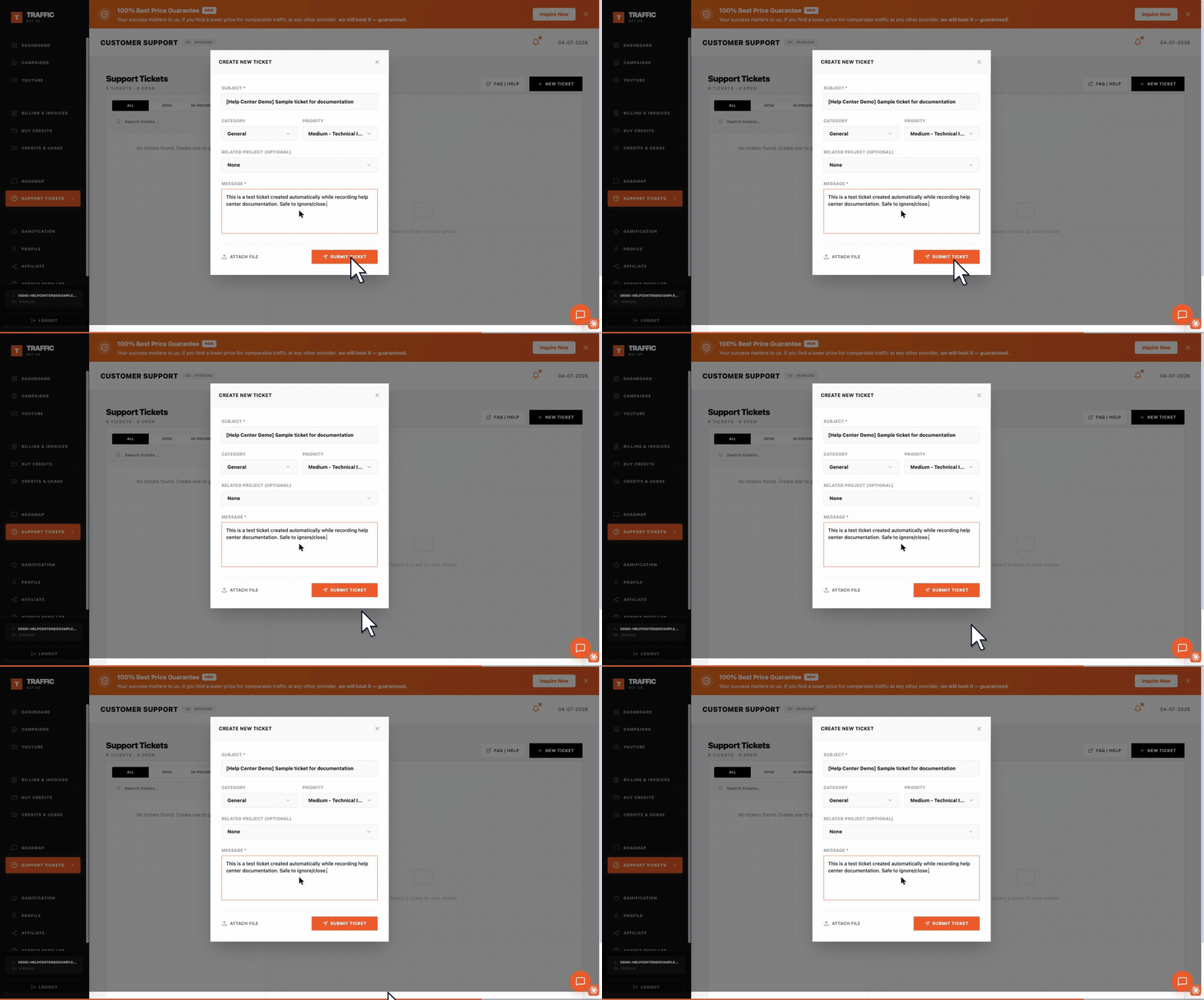
New Ticket opens a form with Subject, Category, Priority, an optional Related Project link, Message, and Attach File. Linking the related project saves a round-trip — it gives support your project ID without you having to look it up.
Steps#
- Open Support Tickets from your dashboard and click New Ticket.
- Fill in a clear Subject.
- Choose a Category (e.g. General) so it reaches the right queue, and a Priority that matches real urgency.
- Optionally link the ticket to a Related Project — this saves you from re-explaining which campaign it's about.
- Describe the issue with specifics: what you expected, what happened instead, and when.
- Attach a screenshot or file if it helps show the problem, then Submit Ticket.
What To Include For Faster Resolution#
- Project ID or campaign name
- The exact date/time you noticed the issue
- What you expected vs. what actually happened
- A screenshot, if the issue is visual or shows an error message
Troubleshooting#
| Problem | What to check |
|---|---|
| No reply yet | Check the ticket's status in your dashboard; replies appear on the same thread. |
| Attachment won't upload | Confirm the file is a supported type and under the size limit; retry or describe the issue in text instead. |
| Issue is urgent | Set the ticket priority accordingly and state the business impact clearly in the description. |
Was this article helpful?
Still need help?
Open a ticket from your dashboard. Include your project ID and a screenshot for the fastest help.