Check Your TrafficCreator Ticket Status and Reply
A ticket moves through open → in-progress/pending → resolved → closed . You can reply on the same thread at any stage except closed, where you'd reopen it first.
Video Walkthrough#
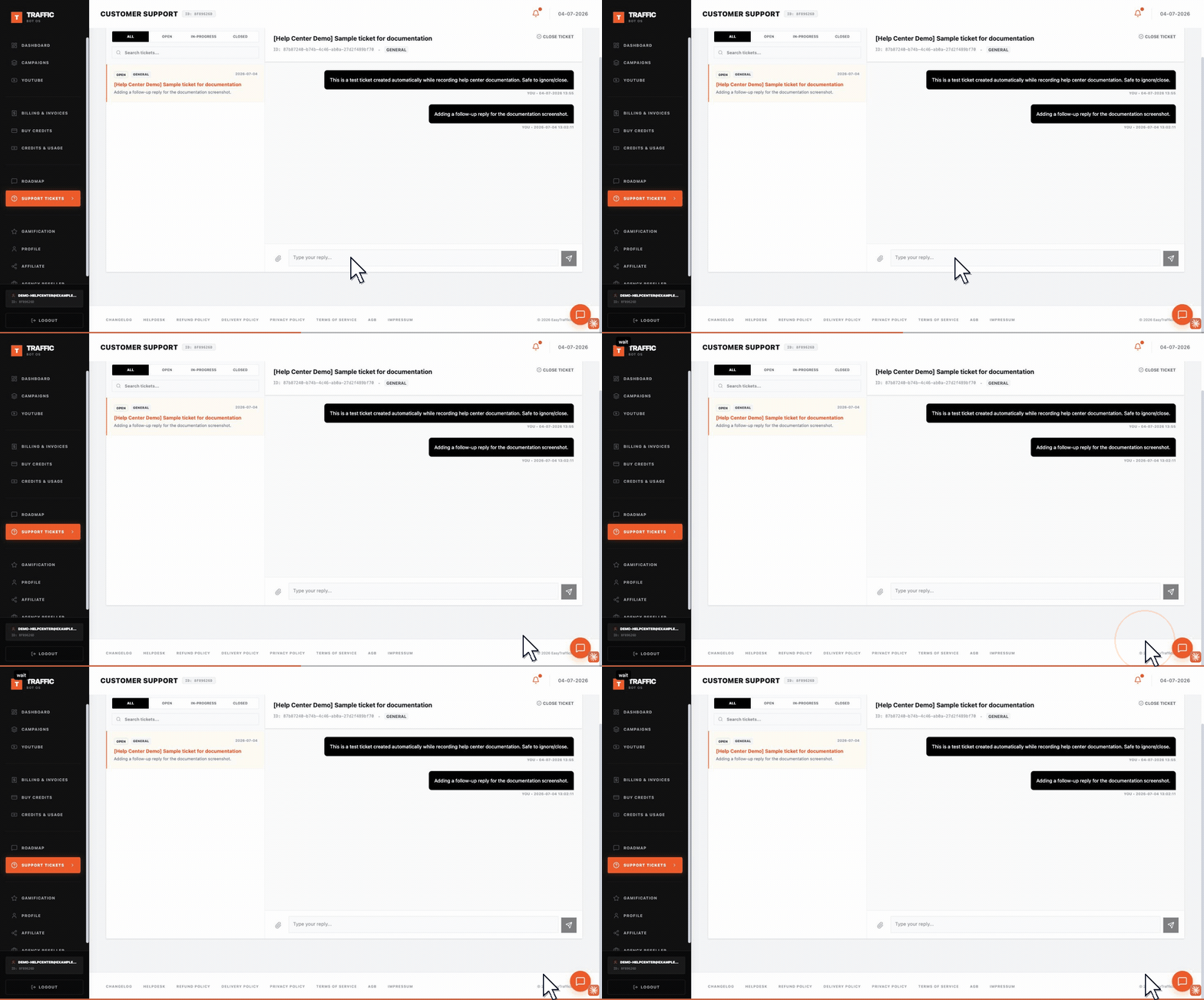
Click a ticket in the left-hand list to open its thread. The reply box sits at the bottom, marked "Write a reply…". Enter sends your reply; use Shift + Enter for a new line — worth knowing before you write a long message. You can attach images, PDFs and documents with the paperclip.
What Each Status Means#
| Status | Meaning |
|---|---|
| Open | Newly submitted, awaiting a first response. |
| Pending | Waiting on you — usually support asked a follow-up question. |
| In-progress | Support is actively working it. |
| Resolved | Support considers it done; can still be reopened if needed. |
| Closed | Finalized; reopen it if the issue recurs. |
Steps To Reply#
- Open Support Tickets and select the ticket.
- Add your reply on the existing thread — don't open a new ticket for the same issue.
- If the ticket is closed and the issue has recurred, reopen it rather than starting fresh, so history isn't lost.
Troubleshooting#
| Problem | What to check |
|---|---|
| Ticket sitting in "pending" | This usually means support is waiting on information from you — check for a follow-up question on the thread. |
| Reply doesn't seem to post | Confirm the send button looks active (not greyed out) before clicking — an empty-looking reply box sometimes hasn't registered your text yet. Also confirm the ticket isn't closed; closed tickets need to be reopened first. |