ST·04
Submit a TrafficCreator Ticket With the Right Details
Quick answer
Choose a specific category instead of leaving it general, set an honest priority, link the Related Project if one applies, and describe the issue with concrete specifics — vague tickets take longer to resolve because support has to ask follow-up questions first.
Video Walkthrough#
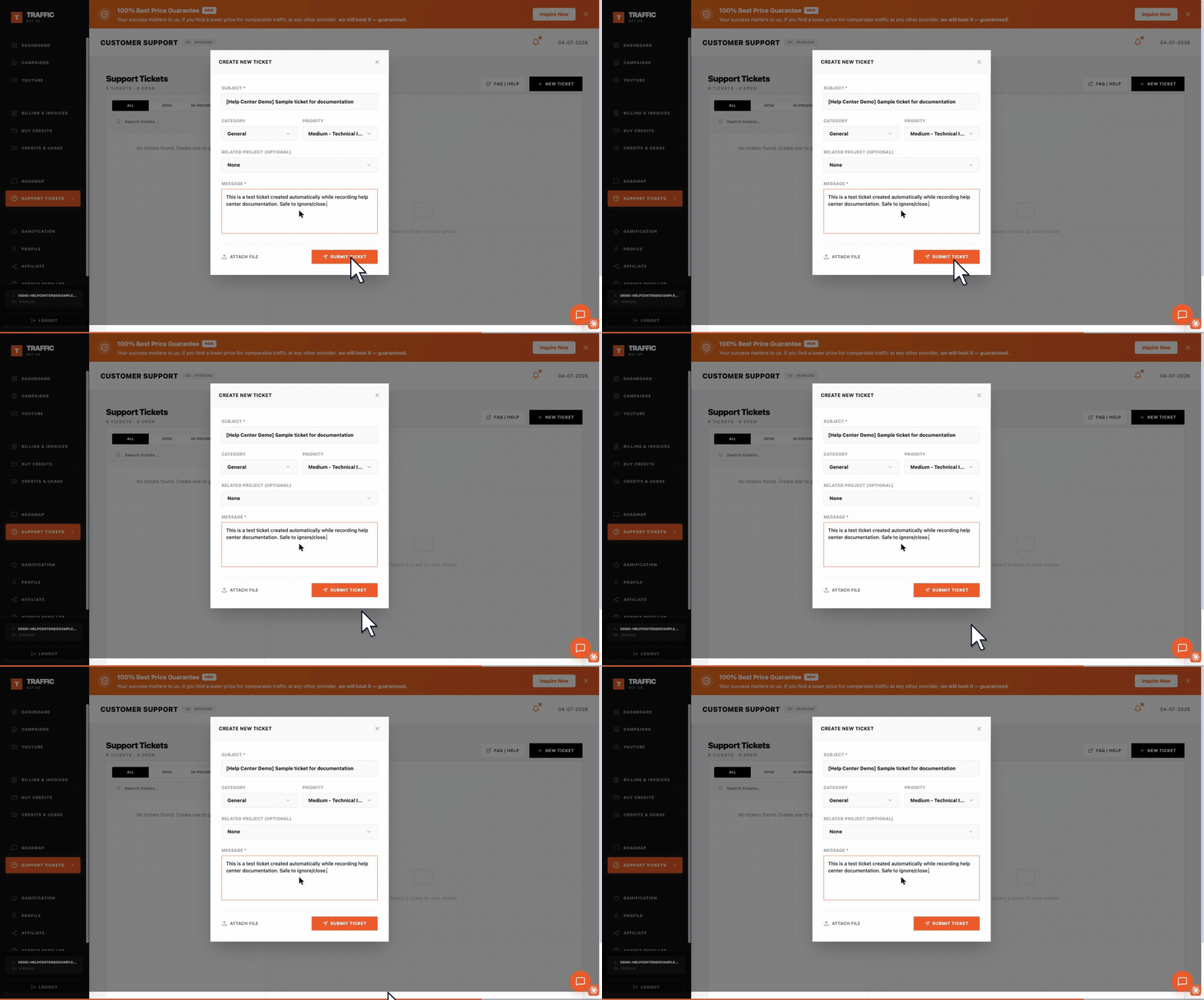
Same recording as Contact TrafficCreator support — this article focuses on how to fill in each field well, not just where to find the form.
Steps#
- Open Support Tickets and click New Ticket.
- Pick the category that matches your issue (billing, technical, general, etc.) rather than defaulting to general.
- Set priority honestly — reserve high/urgent for genuine business impact.
- Link the Related Project if the issue is about a specific campaign — this saves a round-trip.
- Describe: what you expected, what happened, and exactly when.
- Include your project ID, transaction reference, or API request details if relevant.
- Attach a screenshot if the issue is visual.
What Makes a Ticket Resolve Faster#
- A specific category (not "general") routes it to the right queue immediately.
- Concrete details — project ID, timestamps, exact error text — mean support doesn't need a follow-up round-trip just to start investigating.
- One issue per ticket is easier to track than several bundled together.
Was this article helpful?
Still need help?
Open a ticket from your dashboard. Include your project ID and a screenshot for the fastest help.