How to Add Funds to Your TrafficCreator Account
Go to Buy Credits , choose the tier you actually plan to run campaigns in (Professional or Expert), pick a volume, and pay by card or crypto — funds appear in that specific tier's balance only.
Video Walkthrough#
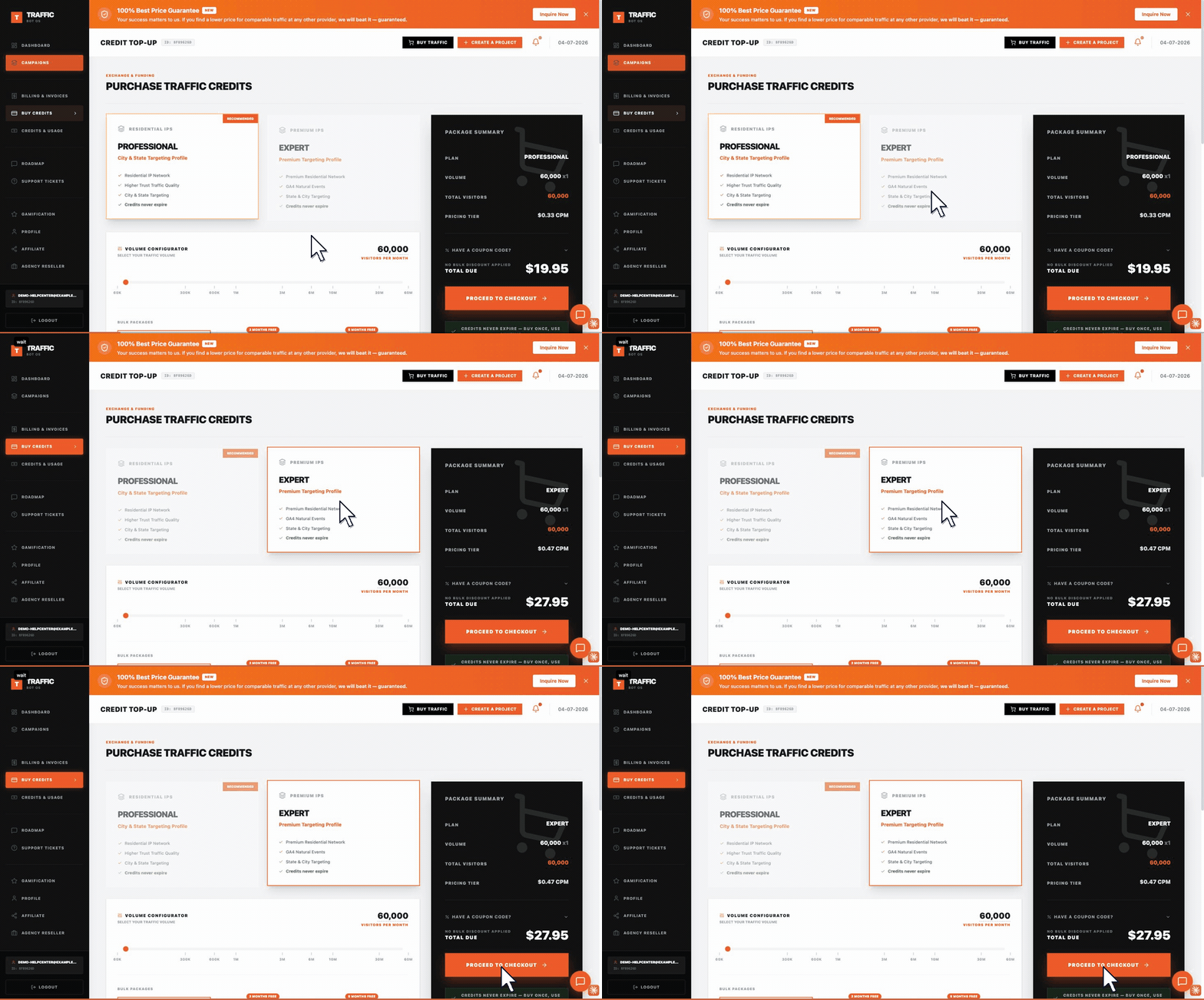
Selecting a tier updates the Package Summary on the right — plan, volume, total visitors, and pricing tier all recalculate live, so you can compare Professional against Expert before committing. The walkthrough stops at Proceed to Checkout; payment happens on the next screen.
Steps#
- Open Buy Credits from your dashboard — this opens the "Purchase Traffic Credits" page.
- Select the tier you want to fund (Professional or Expert) — this matters, since balances don't transfer between tiers.
- Use the Volume Configurator slider (or a bulk package) to choose a visitor volume — the price updates live based on tier and volume.
- Click Proceed to Checkout and pay by card (Stripe) or crypto.
- Confirm the new balance appears under that tier on your dashboard.
Before You Buy#
Decide which tier you'll actually use first (see Choose the right traffic tier) — buying into the wrong tier means you'll need to purchase again for the tier you actually want to run.
Troubleshooting#
| Problem | What to check |
|---|---|
| Balance didn't update after payment | Card payments usually reflect immediately; crypto payments require your transfer reference to be matched and can take longer. |
| Bought the wrong tier | Balances are tier-specific and don't transfer — contact billing support if this just happened. |
| Payment declined | See Why a payment failed. |