How Referrers and UTM Parameters Work in TrafficCreator
UTM tracking is a post-creation project setting called Tracking & Attribution (UTM) — use a quick preset (Google Ads, Facebook, Newsletter, Twitter/X, Pinterest) or set Campaign Source/Medium manually, and a live URL preview shows exactly what gets appended to delivered visits.
Video Walkthrough#
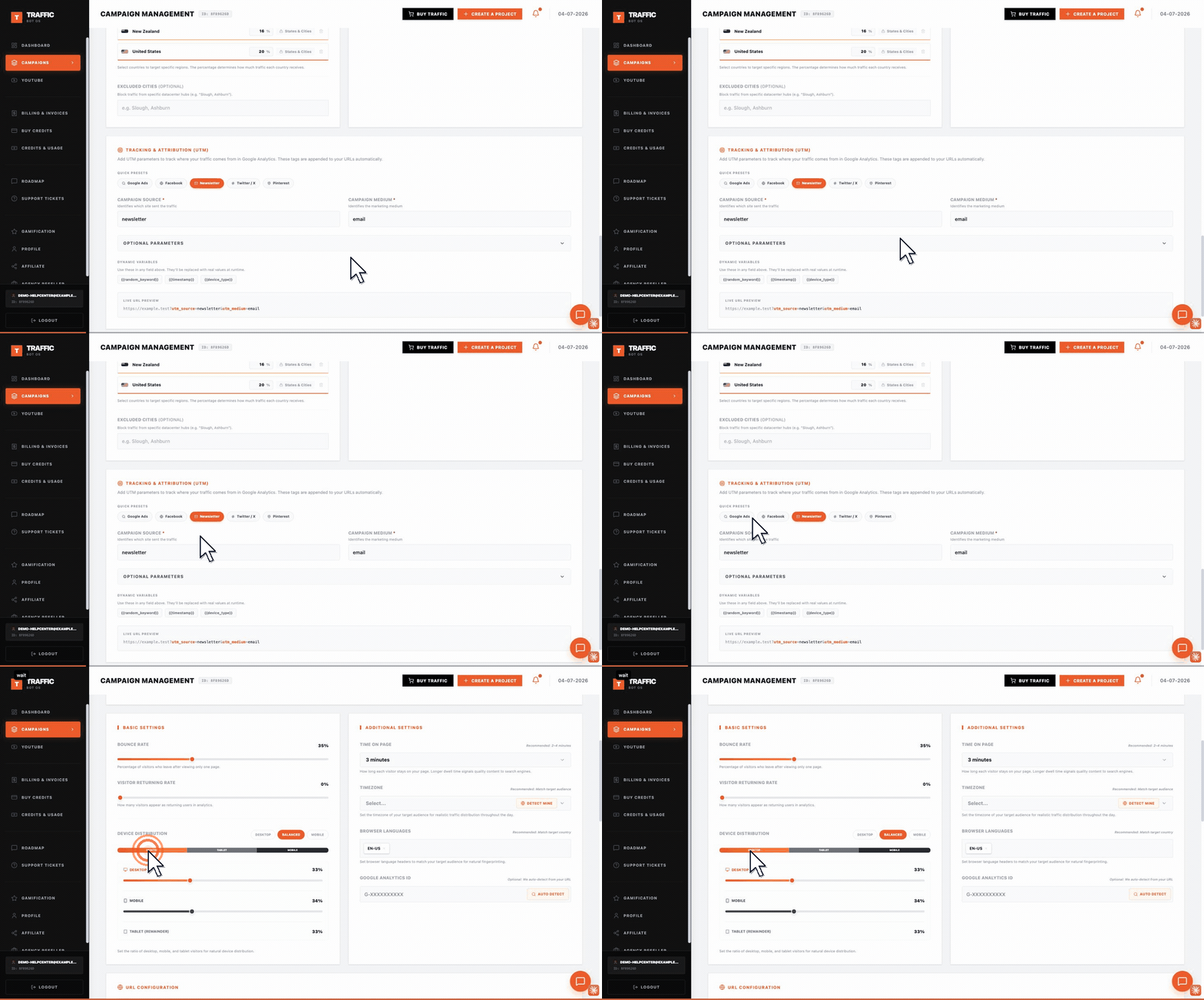
Clicking a quick preset — Google Ads, Facebook, Newsletter, Twitter/X, Pinterest — auto-fills Campaign Source and Campaign Medium for you. Underneath, Live URL Preview shows the fully tagged URL your traffic will use, so you can check it before saving.
Steps#
- Open the project from Campaigns, scroll to Tracking & Attribution (UTM).
- Click a quick preset (Google Ads, Facebook, Newsletter, Twitter/X, Pinterest) to auto-fill Campaign Source and Medium, or fill them in manually.
- Check the Live URL Preview to confirm exactly what will be appended to delivered visits.
- Optional Parameters and dynamic variables (
{{random_keyword}},{{timestamp}},{{device_type}}) are available for more advanced tagging. - Save — new visits carry these parameters going forward.
Traffic Source Setting#
Separately, the project's Traffic Source behavior setting (e.g. Direct) controls how visits present themselves before any UTM parameters are layered on top.
Troubleshooting#
| Problem | What to check |
|---|---|
| UTM parameters not showing in GA4 reports | Confirm they were saved on the project settings, and allow for GA4's normal reporting delay. |
| Can't find UTM settings during initial setup | UTM Tracking is a post-creation setting, not part of the initial campaign wizard. |