How Device Targeting Works in TrafficCreator
Device targeting is controlled by the Device Distribution slider in a project's Basic Settings — it splits traffic across desktop, tablet, and mobile using percentages, with Desktop/Balanced/Mobile presets. The default is 70% desktop / 30% mobile, with tablet at 0% unless you set one.
Video Walkthrough#
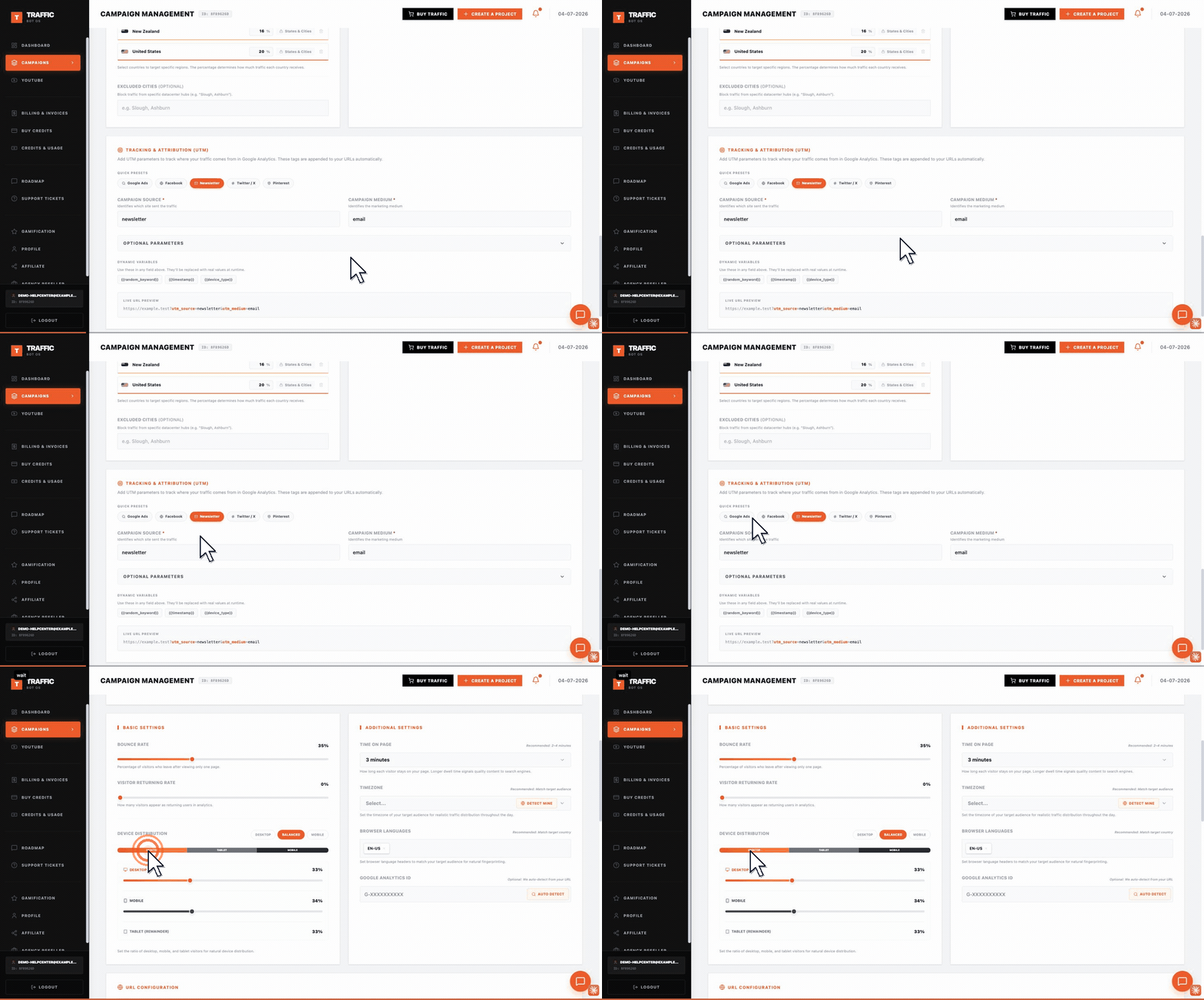
Device Distribution lives on an existing project's settings page, under Basic Settings — the sliders set the desktop / mobile / tablet split. UTM Tracking is on the same page rather than a separate tab, so you can adjust both in one pass.
Steps#
- Open the project from Campaigns — Device Distribution is on its settings page under Basic Settings, not part of the initial campaign wizard.
- Choose a preset (Desktop, Balanced, Mobile) or drag the individual Desktop/Mobile sliders — Tablet is the remainder, calculated automatically.
- Changes apply once you click Save Changes at the top of the page.
Why This Matters#
Matching your device split to your site's actual audience makes GA4 device-category data look consistent with your real traffic patterns.
Troubleshooting#
| Problem | What to check |
|---|---|
| Can't find device targeting | Look for "Device Distribution" under Basic Settings on the project's own page — it's a post-creation setting, not part of the initial campaign wizard. |
| Percentages don't add up | Adjust the Desktop or Mobile slider directly — Tablet auto-fills the remainder, so you can't set all three independently. |