How to Update Your TrafficCreator Email or Profile
Update your email address, password, and email preferences from Profile in your dashboard. The page is split into three tabs, and which one you need depends on what you're changing.
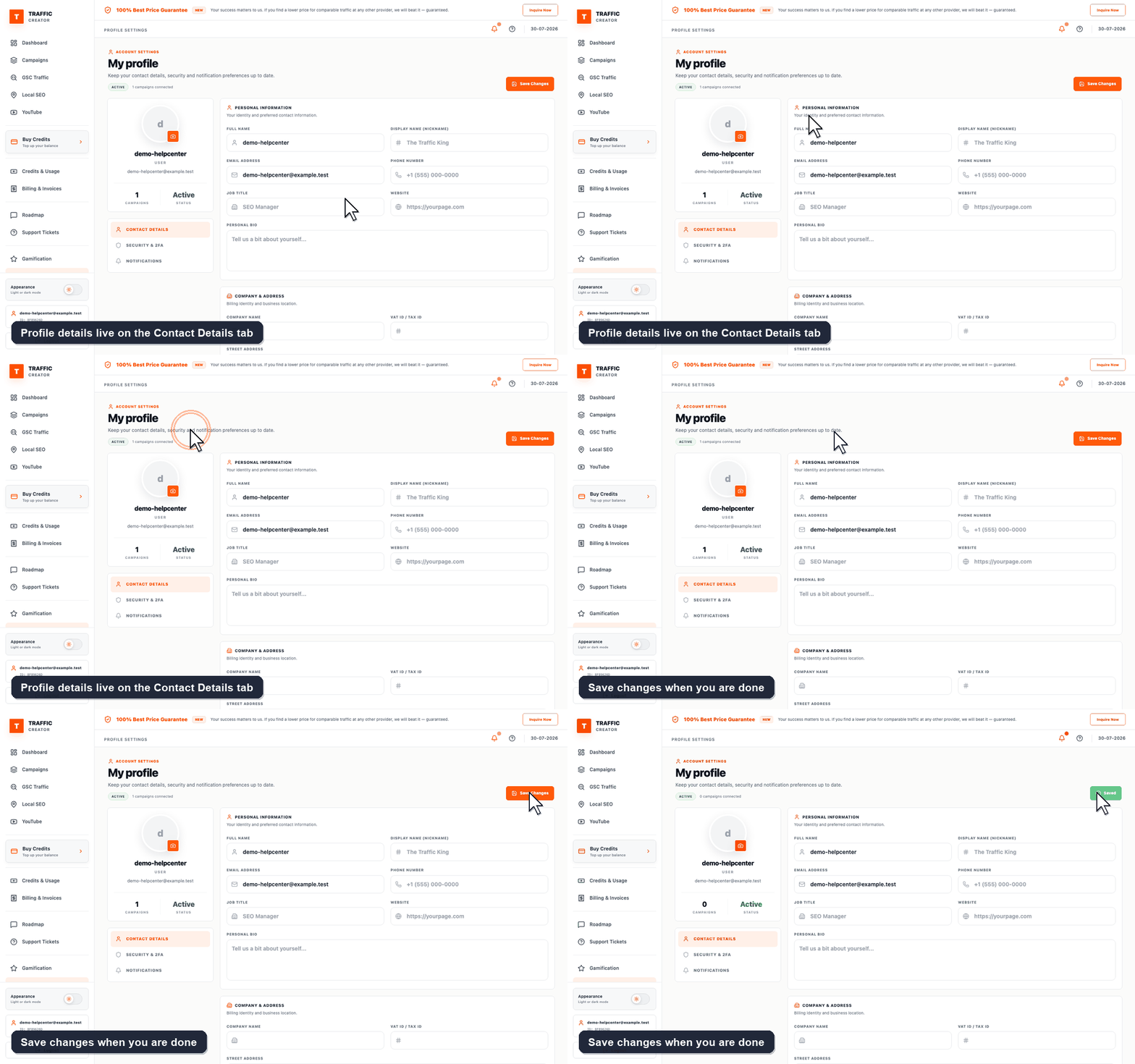
Which Tab You Need#
| Tab | What's on it |
|---|---|
| Contact Details | Email address, name, company and the rest of your profile fields. |
| Security & 2FA | Change Password, two-factor authentication, and Recent Login History. |
| Notifications | How often TrafficCreator emails you. |
Steps#
- Log in and open Profile (bottom of the left sidebar, on your account block).
- On Contact Details, update your Email Address or any other field.
- Click Save changes at the top right — edits are not saved automatically.
- To change your password, switch to Security & 2FA and use the Change Password section, which has its own Update Password button.
- To change how often you're emailed, use the Notifications tab.
Troubleshooting#
| Problem | What to check |
|---|---|
| Email change doesn't seem to save | Confirm the new address is valid and not already in use on another account. |
| Not receiving emails after changing frequency | Check spam/junk, and confirm the frequency setting saved correctly. |
| Need to log in with the old email | Use whichever email is currently saved on your profile — changing it takes effect immediately. |