How to Reset Your TrafficCreator Password
To reset a forgotten password, use Forgot? on the login screen and follow the email link. To change a password you remember, do it from your account profile instead.
Video Walkthrough#
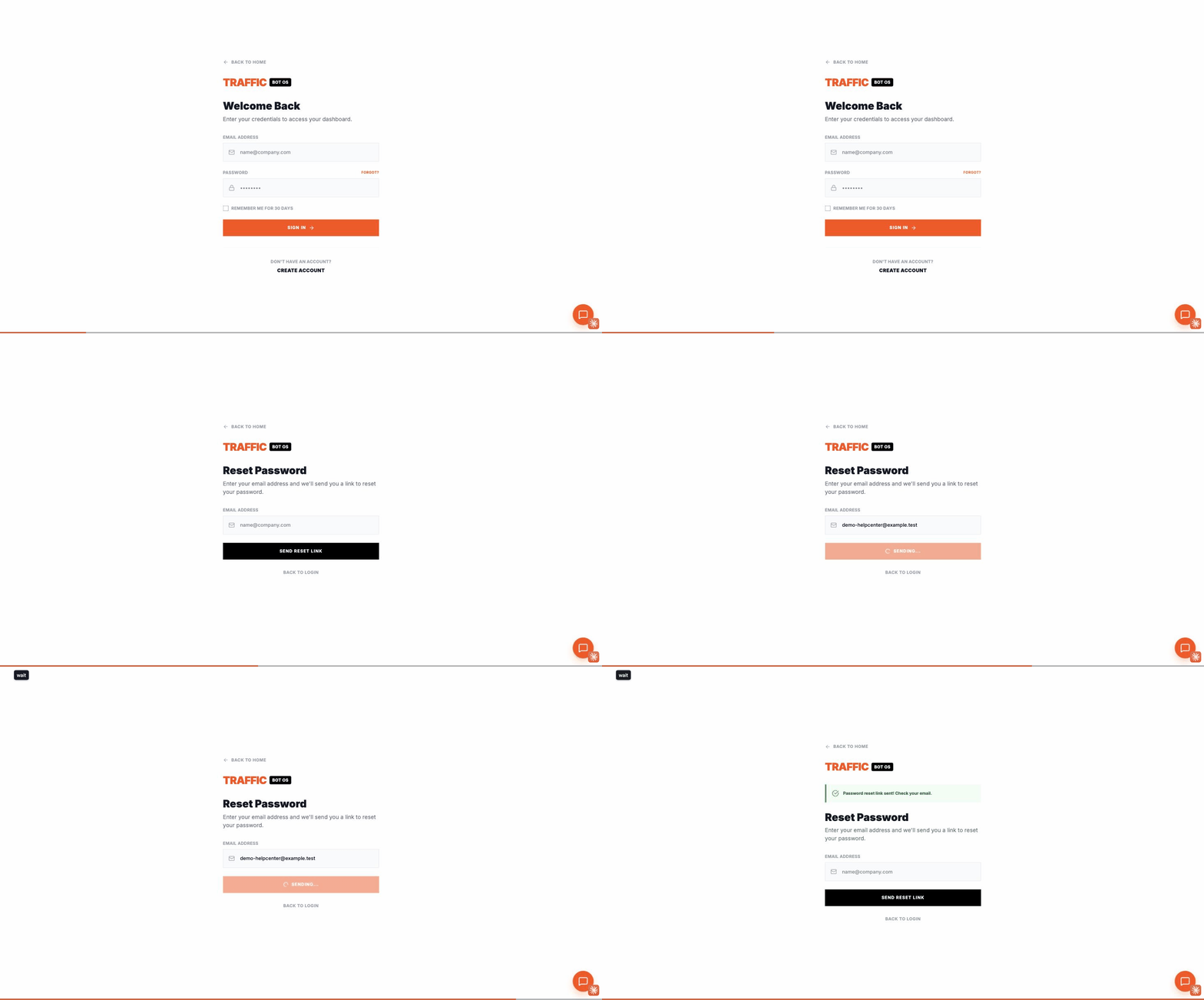
The Forgot password? link sits on the right, level with the "Remember me" checkbox just under the Password field. It opens the Reset Password page at /forgot, which confirms with "If an account exists for that email, a reset link has been sent." That wording is deliberate — it looks the same whether or not the address is registered, so nobody can use the form to discover which emails have accounts.
Steps: Forgotten Password#
- On the login screen, select Forgot password? (right-hand side, just below the Password field).
- Enter the email address on your account.
- Check your inbox for a password reset email and follow the link.
- Set a new password and log in.
Steps: Change a Known Password#
- Log in to your account.
- Go to Profile → Security & 2FA.
- Fill in Current Password, New Password, and Confirm New Password under Change Password, then click Update Password.
Troubleshooting#
| Problem | What to check |
|---|---|
| No reset email arrives | Check spam/junk folders; confirm you used the exact email your account is registered with. |
| Reset link says expired or invalid | Request a new reset email — links expire after a period for security. |
| Still can't log in after resetting | Confirm caps lock is off and that you're using the new password, not the old one. |
When To Contact Support#
Contact support if you no longer have access to the email on your account, since a password reset requires that inbox.